
Using Close Circle
The app runs on Android 7.0 and later. Everything is stored only on your phone, and no sign-up is needed.
Installation
From RuStore
Open the app page in RuStore and tap Install. Updates arrive through the store.
From an APK file
- Open this page on your phone and download the APK from the app page.
- Open the downloaded file from the browser notification or from the Downloads folder.
- If the phone asks whether to allow installs from this source, tap Settings, turn on Allow from this source for your browser, and go back.
- Tap Install.
Install a new APK version over the old one, and your people and settings stay in place. Don't uninstall the app before updating: uninstalling erases all data.
Notification permission
On Android 13 and later, the app asks for permission to send notifications on the first start. Allow it, otherwise reminders won't arrive. You can change this later in the phone settings: Apps → Close Circle → Notifications.
People
Add a person
On the main screen, tap New person. Only the name is required, the rest is optional:
- Surname and patronymic.
- Date of birth: the age and reminders are based on it.
- Group: family, relatives, friends, colleagues, or other.
- Tags: any words, like "school", "university", or "football".
- Note: for example, what the person likes or what to give them.
- Notify: turn it off if you don't need reminders for this person.
Photo
Tap Add photo, choose a picture from the gallery, and crop it. Later you can change, crop, or remove the photo.
Edit or delete
Open the person's card and tap the pencil icon to edit. The Delete button is there too. Deleting a person also removes their reminders.
The list and groups
The main screen sorts people by the next birthday. On the right of each entry you see the age they'll turn and when: "Today", "Tomorrow", "In 5 days". Jubilees have a badge.
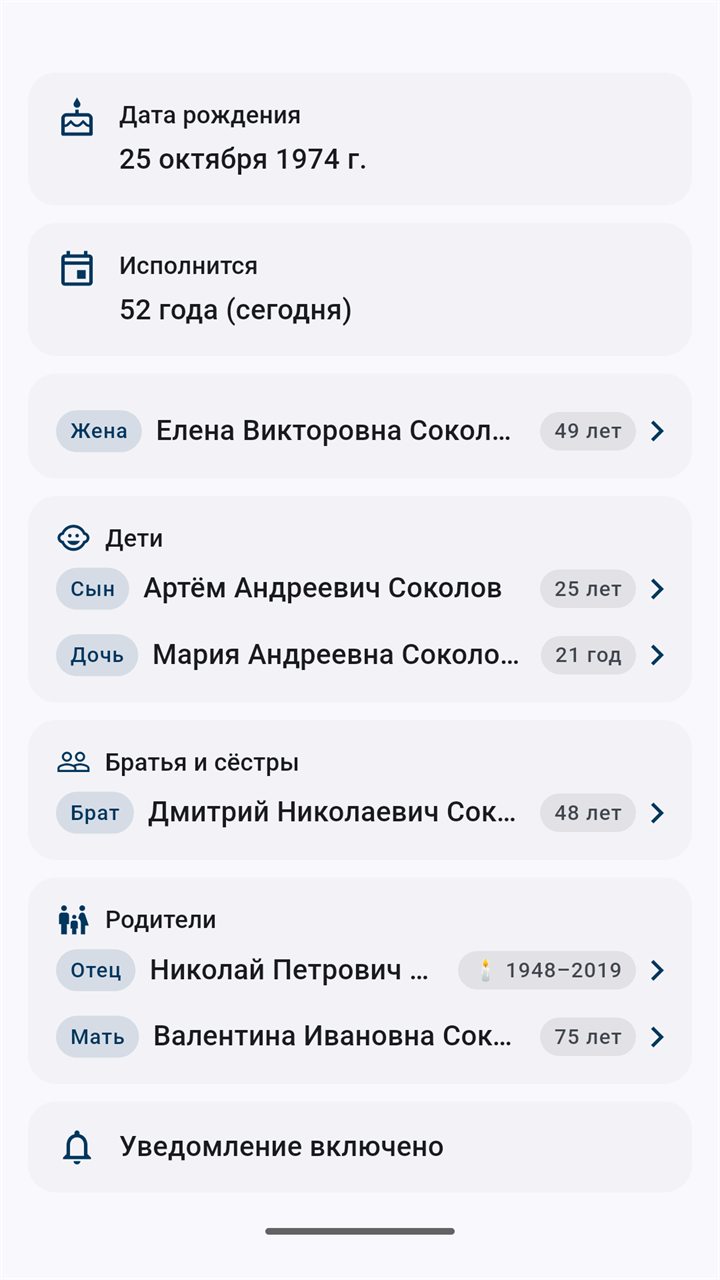
The bar above the list switches groups: All, Family, Relatives, Friends, Colleagues. A person's card shows their current age, date of birth, the age they'll turn, and how many days are left.
Reminders
Open the menu (three lines in the top-left corner) → Settings.
| Setting | Options |
|---|---|
| Notification time | Any time of day. The default is 9:00. |
| When to remind | On the day, 1 day before, 3 days before, 7 days before. You can pick several at once. |
| Jubilee when age is a multiple of | 5 or 10 years. A jubilee arrives with a separate message. |
For example, with "3 days before" and "On the day" selected, you'll get "Anna's birthday is in 3 days." and, on the day itself, "Today is Anna's birthday. Turning 38."
Memorial
The memorial is a place of remembrance for those who have passed away. To move a person there:
- Open their card, tap the pencil icon, then the ⋮ menu in the top-right corner → More options.
- Choose Move to memorial and enter the date of death.
The person leaves the birthday list, and a reminder arrives three days before the anniversary of their death. Open the memorial from the menu. If you moved someone by mistake, choose Move back to birthdays.
Family ties
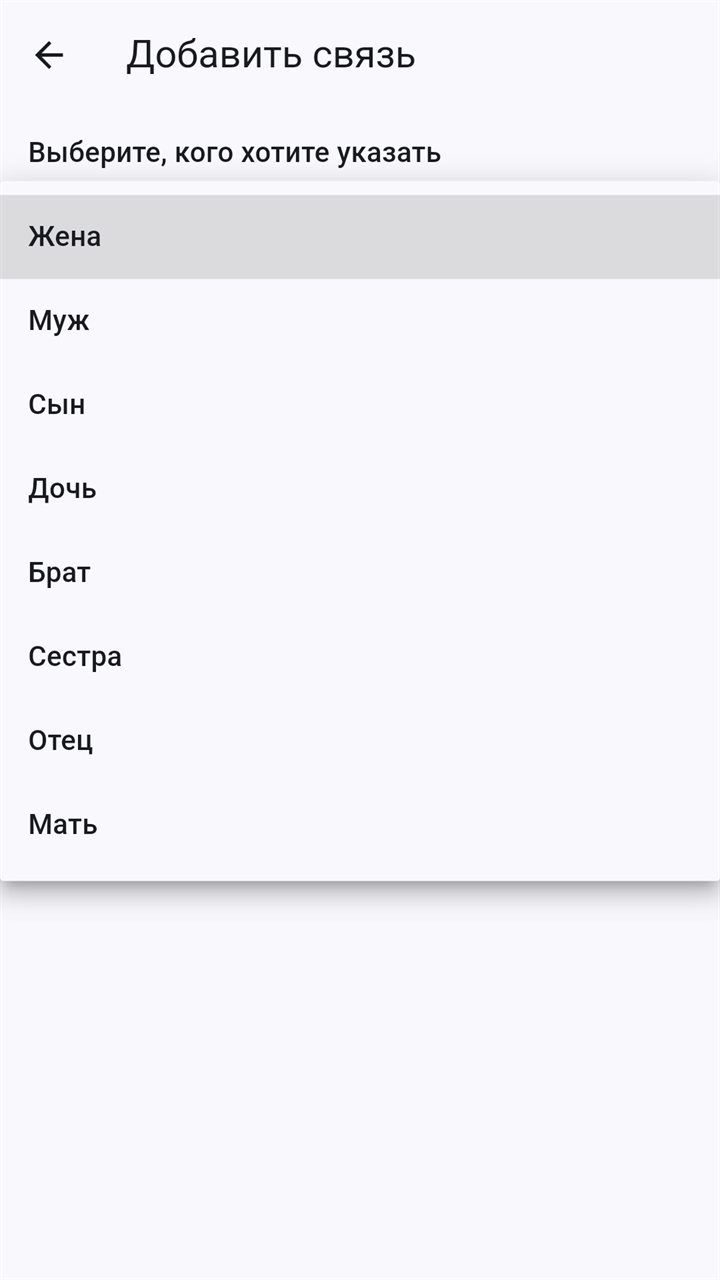
Open the person's card, tap the pencil icon, then the ⋮ menu in the top-right corner → Relations. On the relations screen, tap Add relation.
- Choose who you want to add: wife, husband, son, daughter, brother, sister, father, or mother.
- If asked, choose the reverse role: who this person is to the other one.
- Choose the person from the list and tap OK.
Enter only direct kinship. Grandparents, grandchildren, great-grandparents, and great-grandchildren are derived automatically and appear as separate blocks in the person's card. The app won't let you add two fathers, two mothers, or a second spouse.
Backup
Your data lives only on the phone, so save a backup from time to time. You'll need it when you switch phones. In Settings, under Backup:
- Save to file writes
backup-YYYY-MM-DD.closecircleto a folder you choose. - Share file sends the backup to a messenger, email, or cloud storage.
- Import file loads a backup. The current list and photos are replaced with the data from the file.
Password
Before saving, the app offers to set a password. If you set one, the file is encrypted and the import won't start without the password. Pass the password on separately from the file. You can leave it empty, and the file opens without one.
A forgotten password can't be recovered: it isn't stored anywhere.
Moving data to Chronicler
Chronicler is a desktop app that builds a family tree from the same data.
- Save a backup. You can set a password: Chronicler 0.2.0 and later asks for it during import.
- Move the file to your computer.
- In Chronicler, choose File → Import….
Moving data back from the tree to the phone is described in the Chronicler documentation.
Appearance
- Theme color: one of ten: blue, indigo, green, teal, burgundy, red, orange, gold, gray, or graphite.
- Text size: from 85 to 130%. It's the app's own setting: the phone's system text size doesn't change the lists.
- Language: follows the phone's system language, English or Russian.
Troubleshooting
Notifications don't arrive
- Check that notifications are allowed: Phone settings → Apps → Close Circle → Notifications.
- The person needs a date of birth, and Notify must be on.
- On some phones (Xiaomi, Huawei, Honor, Samsung), battery saving stops background tasks. Let the app run in the background: Apps → Close Circle → Battery → Unrestricted.
"This file is not a backup"
You can import only .closecircle backups created by Close Circle or Chronicler. If the file went through a messenger, make sure it didn't turn into text or an archive.